From Dropbox to Daily Driver Part 7: Wiring the Pi In as a Wazuh Agent
Part 6 ended with a Wazuh manager running on pve, dashboard reachable, nothing actually reporting to it. A manager with no agents is a slightly expensive way to look at an empty screen. This part fixes that: installing the Wazuh agent on the Pi itself, pointing it at the manager, checking whether any of the logins this series has been generating since Part 2 actually show up anywhere, then going further, turning on continuous configuration auditing and working through what it actually finds.
Installing the agent
Wazuh ships architecture-specific .deb packages rather than one universal build, which matters here since the Pi is arm64 and the manager VM from Part 6 is amd64. The right package for this device:
wget https://packages.wazuh.com/4.x/apt/pool/main/w/wazuh-agent/wazuh-agent_4.14.7-1_arm64.deb
sudo WAZUH_MANAGER='192.168.1.4' dpkg -i ./wazuh-agent_4.14.7-1_arm64.deb
Setting WAZUH_MANAGER as an environment variable on the dpkg invocation bakes the manager’s address straight into /var/ossec/etc/ossec.conf during the package’s post-install step, rather than needing a manual edit and a restart afterward. dpkg unpacked and configured the package cleanly, first try, no missing dependencies: the agent ships as a self-contained binary with its own bundled runtime rather than pulling in a chain of system packages.
Starting it
sudo systemctl daemon-reload
sudo systemctl enable wazuh-agent
sudo systemctl start wazuh-agent
sudo systemctl status wazuh-agent
● wazuh-agent.service - Wazuh Agent
Loaded: loaded (/etc/systemd/system/wazuh-agent.service; enabled; preset: enabled)
Active: active (running)enabled in the loaded line matters as much as active (running) does here: this needs to survive the Pi’s next reboot without anyone remembering to start it by hand, the same unattended-by-default posture the rest of this series has tried to hold to since Part 3.
Confirming enrolment
Back on the manager’s dashboard, the Pi shows up under Endpoints within a few seconds of the service starting:
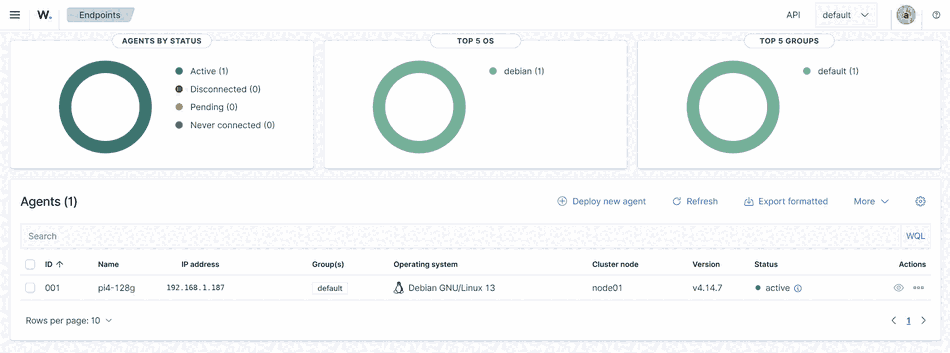
Active, correctly identified as Debian GNU/Linux 13 (Trixie, as Part 1 chose), running agent version v4.14.7 to match the manager. That confirms the network path and the enrolment worked. It doesn’t yet confirm anything useful is actually being detected.
Checking whether it actually does anything
The honest way to test that is to just use the Pi normally and see what turns up, rather than trust that a green “Active” status implies working detection. A few ordinary SSH sessions later, from Box1, key plus TOTP, exactly as Part 4 built it, the manager’s Security Events view told a different story than an empty dashboard would have:
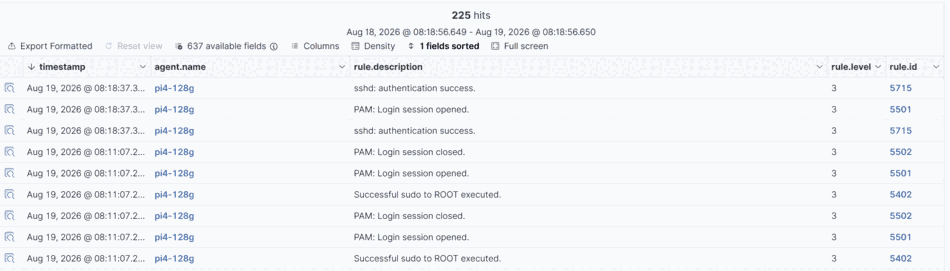
225 hits, and the ones that matter for this series are exactly the events Parts 3 and 4 spent effort building: sshd: authentication success (rule 5715), PAM: Login session opened and Login session closed (5501/5502), and Successful sudo to ROOT executed (5402). All level 3, all present, all without writing a single custom rule or decoder.
That’s worth being explicit about, because it’s easy to assume a SIEM needs to be taught what to look for before it’s useful. Wazuh’s default ruleset already ships decoders for sshd, PAM, and sudo log lines, the exact daemons already logging to journald on any stock Debian or Ubuntu box. Enrolling the agent was enough to start getting real, correctly-classified visibility into every login and privilege escalation on this device, which is precisely the gap Part 6 opened this part by describing: preventative controls that don’t tell you anything after the fact, now paired with something that does.
That’s event-driven visibility, though: it tells you when something happens. It says nothing about whether the device’s configuration is actually in the state it’s supposed to be in right now, a setting that quietly drifted, a permission loosened by an unrelated package update, wouldn’t generate an event at all. That’s a different job, and Wazuh has a module built specifically for it.
Turning on Security Configuration Assessment
SCA is a module built into the Wazuh agent itself, no separate install. It periodically scans the device’s actual configuration, SSH settings, PAM rules, filesystem permissions, kernel parameters, against a policy file of expected values, and Wazuh ships default policies loosely modelled on CIS Benchmarks for major distros. A quick check on the agent showed exactly the right one already present:
sudo ls /var/ossec/ruleset/sca/cis_debian13.ymlA clean match for the exact OS this Pi runs, no falling back to a nearby version or writing something from scratch. The agent’s default config didn’t have an sca block enabled, though, so one went in fresh, inserted alongside the existing cis-cat, osquery, and syscollector wodles already in /etc/ossec/etc/ossec.conf rather than tacked on as a stray block at the end of the file:
sudo sed -i '49r /dev/stdin' /var/ossec/etc/ossec.conf <<'EOF'

  <wodle name="sca">
    <disabled>no</disabled>
    <scan_on_start>yes</scan_on_start>
    <interval>12h</interval>
    <skip_nfs>yes</skip_nfs>

    <policies>
      <policy>cis_debian13.yml</policy>
    </policies>
  </wodle>
EOF
Restarting the agent triggered the first scan immediately, thanks to scan_on_start:
sudo systemctl restart wazuh-agentsca: INFO: Starting Security Configuration Assessment scan.
sca: INFO: Starting evaluation of policy: '/var/ossec/ruleset/sca/cis_debian13.yml'
sca: INFO: Evaluation finished for policy '/var/ossec/ruleset/sca/cis_debian13.yml'
sca: INFO: Security Configuration Assessment scan finished. Duration: 8 seconds.Eight seconds, 207 checks, and a result that was less flattering than the clean SSH alerting from earlier in this post: 79 passed, 105 failed, 23 not applicable. A generic CIS profile applied honestly to a real device rarely comes back clean, and the useful work here isn’t chasing every red line to green, it’s working out which failures are real.
A small methodology note worth including: the first attempt at getting this data out of the dashboard was a browser “Save Page As” of the results view. That didn’t work, the dashboard is a single-page app that fetches its data client-side, and a page save only captures the static shell it’s built from, not what got drawn in afterward. The CSV export button turned out to be the right tool, real per-check data including the exact command and rule definition behind every result, which is what made the rest of this section possible.
Sorting 105 failures into something useful
The biggest single bucket, around twenty checks, wanted separate partitions for /tmp, /home, /var, /var/tmp, /var/log, and /var/log/audit, each with its own nodev/nosuid/noexec mount options. This Pi boots from one microSD partition, not a multi-partition enterprise layout, and repartitioning a live boot card for this isn’t proportionate to what this device actually faces. Explained exception, not fixed.
A few more turned out to be checks that simply don’t fit this hardware. Ensure access to bootloader config is configured runs stat against /boot/grub/grub.cfg, a file that will never exist here, this Pi boots from firmware, not GRUB. systemd-journal-upload, systemd-journal-remote, and rsyslog all failed for not being installed, but this build ships logs to Wazuh directly, that’s a different, already-working path to the same goal. AIDE, a file-integrity tool, isn’t installed either, but Wazuh’s own FIM module started right alongside the SCA scan in the agent log, doing the identical job already.
Two bigger judgement calls got made deliberately rather than resolved with a command. auditd sits behind roughly eighteen of the failures, kernel-level syscall auditing that’s genuinely more capable than anything running so far, exact file touches and exact commands regardless of whether the responsible program logs anything itself. But it’s also meaningfully more log volume layered onto a device that already runs off a microSD card, the exact write-wear concern Part 1 raised as this build’s core storage risk from the very first post. Skipped, on the same reasoning as the no-fail2ban call earlier in this series. The PAM password-complexity checks, minimum length, dictionary checking, history, went the same way for a simpler reason: this Pi has one account, one password, already generated as a proper high-entropy random string, and SSH has been key-only since Part 3. There’s no interactive password login here for a complexity policy to actually protect.
Closing the SSH and login-surface gaps
The remaining failures split into things worth fixing and things that turned out to already be fine, just mis-detected. The firewall was the first example of the latter, and worth confirming properly before assuming anything:
sudo ufw status verboseStatus: active
Default: deny (incoming), allow (outgoing), disabled (routed)
22/tcp ALLOW IN AnywhereActive, default-deny incoming, one deliberate exception, exactly what a correctly configured host firewall should look like. The SCA check just wasn’t detecting ufw’s state correctly on this Debian release. Real security posture: fine.
PermitRootLogin was different, and led somewhere more interesting than the setting itself. No explicit line existed anywhere, which meant OpenSSH was falling back to its compiled-in default, prohibit-password, root can’t log in with a password, but a key placed in root’s authorized_keys still would. Checking where the setting should live turned up an Include /etc/ssh/sshd_config.d/*.conf directive, and inside it, two files: 10-harden.conf, from Part 3, and 50-cloud-init.conf, containing a single line: PasswordAuthentication yes. A direct contradiction of the harden config, left over from Part 2’s Imager-driven first boot, and currently harmless only because of alphabetical load order, 10- before 50-, first-match-wins. That’s exactly the kind of fragile, load-order-dependent drift SCA exists to catch. sshd -T confirmed the live effective value was correctly no before touching anything, then the cleanup:
sudo rm /etc/ssh/sshd_config.d/50-cloud-init.conf
echo 'PermitRootLogin no' | sudo tee -a /etc/ssh/sshd_config.d/10-harden.conf
sudo sshd -t
sudo systemctl reload ssh
One drop-in removed, one directive added, syntax checked before reload, session never dropped. A handful of other sshd_config directives went in the same way, appended to 10-harden.conf alongside what was already there:
AllowUsers michealg
Banner /etc/issue.net
ClientAliveInterval 15
ClientAliveCountMax 3
DisableForwarding yes
LoginGraceTime 20
MACs hmac-sha2-512-etm@openssh.com,hmac-sha2-256-etm@openssh.com,umac-128-etm@openssh.com
MaxAuthTries 4
MaxStartups 10:30:60
AllowUsers restricts logins to that one real account by name. ClientAliveInterval/ClientAliveCountMax disconnects a session only if the client stops answering keepalive probes for 45 seconds, dead-connection detection, not an idle-typing timeout. DisableForwarding turns off X11/agent/TCP forwarding entirely, none of which this device needs. The rest narrow the window around the auth prompt itself. sshd -t and a reload applied all nine cleanly.
The two remaining services running unnecessarily on a headless, wired-only Pi were easy calls: mDNS discovery and Bluetooth, both active and enabled by default on the stock image, neither serving any purpose here.
sudo systemctl disable --now avahi-daemon avahi-daemon.socket
sudo systemctl mask avahi-daemon avahi-daemon.socket
sudo systemctl disable --now bluetooth
sudo systemctl mask bluetooth
Masked rather than just stopped, avahi-daemon in particular has a socket-activation unit that would otherwise bring it straight back the next time anything reached for it. Cron directory permissions and sudo logging were similarly quick, ownership was already correct everywhere, only the permissions needed tightening, and sudo simply had no logging directive configured at all:
sudo chmod 600 /etc/crontab
sudo chmod 700 /etc/cron.hourly /etc/cron.daily /etc/cron.weekly /etc/cron.monthly /etc/cron.d
echo 'Defaults logfile="/var/log/sudo.log"' | sudo tee /etc/sudoers.d/01-logfile > /dev/null
sudo chmod 440 /etc/sudoers.d/01-logfile
sudo visudo -cf /etc/sudoers.d/01-logfile
That sudoers change went through a drop-in file, syntax-checked with visudo -cf before ever being live, never edited in place. A broken /etc/sudoers can lock sudo out entirely, and this is one of the few edits on this whole device where that risk is real rather than theoretical.
Last in this batch, the login banners. /etc/issue.net and /etc/issue both turned out to be actively leaking information rather than warning anyone, their default content was just the OS name and version, exactly the kind of detail a real warning banner shouldn’t be handing an unauthenticated connection. They, along with /etc/motd, which was just generic Debian licensing boilerplate, got replaced with one consistent notice:
################################################################################
#                                                                              #
#                     !! AUTHORISED ACCESS ONLY !!                             #
#                                                                              #
#  This system is privately owned and monitored at all times.                  #
#                                                                              #
#  Unauthorised access, attempted access, or misuse of this system is          #
#  strictly prohibited and constitutes a criminal offence under the            #
#  Computer Misuse Act 1990 (UK) and applicable international law.             #
#                                                                              #
#  All activity on this system — including connections, keystrokes, and        #
#  file access — is logged, monitored, and may be reviewed or disclosed        #
#  to law enforcement without further notice.                                  #
#                                                                              #
#  If you are not an authorised user, disconnect now.                          #
#                                                                              #
#       I check logs.  I hold a grudge.  You have been warned.                 #
#                                                                              #
################################################################################
Every one of these changes got tested for real, not just trusted, over the actual internet-facing path this series built in Part 5, AllowUsers in particular could have caused a real lockout if it were wrong:
$ ssh pi4-tunnel
################################################################################
#                     !! AUTHORISED ACCESS ONLY !!                             #
...
################################################################################
(michealg@pi4-128g.michealgarner.co.uk) Verification code:
Linux pi4-128g 6.18.39+rpt-rpi-v8 #1 SMP PREEMPT Debian 1:6.18.39-1+rpt1 (2026-07-29) aarch64
################################################################################
...
################################################################################
Last login: Wed Aug 19 2026 from ::1
michealg@pi4-128g:~$
Banner before the TOTP prompt, banner again post-login as the MOTD, a clean 2FA challenge, and a shell, exactly as expected. Worth a small aside on that kernel line too: 6.18.39, dated a few weeks after the 6.18.34 Part 2’s first boot reported, Part 3’s unattended upgrades quietly doing their job across the life of this build so far, no action needed, just nice to see working. One last loose end acknowledged rather than fixed: this Pi is still on a DHCP lease, not a static address. It doesn’t matter for reachability, the Cloudflare Tunnel from Part 5 is entirely outbound, identified by tunnel credentials rather than the Pi’s LAN address, so it’s tidiness, not security, and stayed off this list.
AppArmor: turned on, deliberately not finished
AppArmor deserved more scrutiny than most of this list, because “installed” and “protecting anything” turned out to be very different claims. The package was present, but:
systemctl is-active apparmor
sudo aa-status
inactive
apparmor module is loaded.
apparmor filesystem is not mounted.The kernel module was available but never actually selected as the active security module at boot, nothing was being enforced. Fixing that meant a kernel boot parameter, and finding the right file took an extra check: this Pi has two cmdline.txt files, and /boot/cmdline.txt turned out to be a stale leftover on the root filesystem, not the one the firmware bootloader reads. mount confirmed only /boot/firmware is the real vfat boot partition. Editing the wrong copy would have looked like a fix and done nothing.
sudo cp /boot/firmware/cmdline.txt /boot/firmware/cmdline.txt.bak-preapparmor
sudo sed -i '$ s/$/ apparmor=1 security=apparmor/' /boot/firmware/cmdline.txt
sudo reboot
Back up cleanly afterward, and this time aa-status told a real story: 105 profiles loaded, but only 6 actually in enforce mode, man, lsb_release, nvidia_modprobe, and similar, none of them touching anything this device actually runs. The other 76 sat unconfined, and the list was revealing, Discord, Steam, Slack, several browsers, none of which are installed on a headless SSH box. Enabling AppArmor pulled in Debian’s full default profile catalogue, generic coverage for common desktop software, most of it inert here simply because the binaries don’t exist. sshd, cron, sudo, and the Wazuh agent, this device’s actual attack surface, have no profiles at all.
That’s an honest place to stop for this post. The check genuinely wanted AppArmor active in the kernel, not just installed, and it is now, a real fix, not a workaround. Writing or enabling profiles that actually confine sshd specifically would be a real step further, and a project of its own rather than an afterthought bolted onto this one, better suited to a dedicated follow-up. One more genuine gap did turn up in the process, separate from the confinement question: the check itself wants two packages, not one.
sudo apt install -y apparmor-utilsapparmor alone was present; apparmor-utils wasn’t, an easy, zero-risk install that closed the check properly rather than needing an explanation.
Verifying rather than assuming the rest
Three more failures got checked directly against the real system rather than either fixed or waved away, and all three turned out to already be correct.
sudo passwd -S root
awk -F: '($2 != "x") {print $1}' /etc/passwd
Root came back L, locked, exactly as it should be. The awk check printed nothing at all, every account already properly shadowed. Both checks were false negatives, same pattern as ufw.
The MOTD banner check was the most interesting of the three, and the one worth showing the reasoning for rather than just asserting. /etc/issue and /etc/issue.net both passed with the identical replacement text from earlier. /etc/motd, same content, kept failing. Pulling the raw rule definitions out of the CSV export showed why: the issue/issue.net checks consistently double-escape every forbidden pattern, \\v, \\r, \\m, \\s, matching literal two-character mingetty codes. The motd check’s version has only single-escaping on the last one, \s instead of \\s, which reads as “any whitespace character” rather than the literal sequence. A banner full of spaces and line breaks was never going to pass that version of the check. That’s a bug in the shipped policy file, confirmed by the same content passing twice under the correctly-escaped version and failing once under the broken one, not a real gap in the banner.
Where the numbers landed
One more scan after the AppArmor and banner fixes:
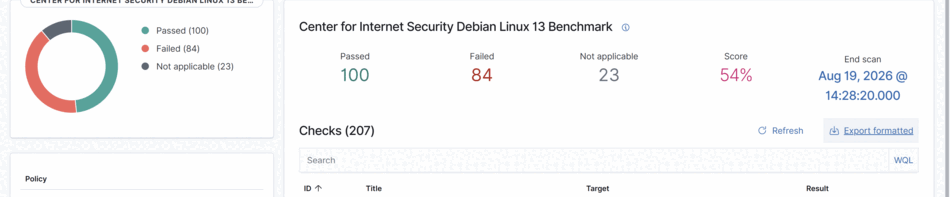
79 to 100 passed, 105 to 84 failed, not applicable steady at 23, score up to 54% from roughly 38%. Twenty-one checks moved, every one of them traceable to something deliberately done: the SSH batch, the banners, avahi and Bluetooth, cron permissions, the sudo log, AppArmor once both required packages were present. Everything still showing failed falls into one of four explained categories rather than being unresolved noise, hardware-layout checks this device was never going to satisfy, functionality already covered a different way, deliberate scope decisions matched to this device’s actual threat model, or confirmed bugs and false negatives in the check logic itself. A pass/fail count on its own would have told a much less honest story than actually working through what it meant.
A real gotcha: LoginGraceTime was too tight for a human
Everything above got checked against a live system before being called fixed. This one showed up the same way, except this time “checking” meant a genuine lockout while writing this series, not a number on a dashboard.
An ordinary SSH session over the Part 5 tunnel, key accepted, then straight into a hang at the TOTP prompt:
$ ssh pi4-tunnel
(michealg@pi4-128g.michealgarner.co.uk) Verification code:
ssh_dispatch_run_fatal: Connection to UNKNOWN port 65535: Broken pipe
Twice in a row, same failure, same point in the exchange. The obvious first suspect was the tunnel itself, Part 5’s Cloudflare Access layer sitting in front of the connection, so the next step was ruling that out directly rather than guessing: the same login attempted straight over the LAN, bypassing Cloudflare entirely.
$ ssh -i ~/.ssh/pi4_ed25519 michealg@192.168.1.187
(michealg@pi4-128g) Verification code:
Connection closed by 192.168.1.187 port 22
Same collapse, this time closed server-side rather than client-side, but at the identical point in the auth exchange. That ruled the tunnel out cleanly: whatever was wrong lived on the Pi itself, not in Cloudflare Access. That pointed straight back at this post’s own SSH hardening batch, specifically LoginGraceTime 20, the directive that bounds the entire authentication exchange, banner, public key, then the keyboard-interactive TOTP prompt, to twenty seconds total. Twenty seconds is enough time to type a six-digit code that’s already sitting on screen. It is not enough time to unlock a phone, open an authenticator app, and read one off, at a normal, unhurried pace.
The quick way to test that theory without touching any config: try again with the code entered the instant it’s visible, no reading, no fumbling for the phone first.
$ ssh -i ~/.ssh/pi4_ed25519 michealg@192.168.1.187
(michealg@pi4-128g) Verification code:
Last login: Sat Aug 22 2026 from 192.168.1.20
michealg@pi4-128g:~$
That’s the tell, not the fix: a login typed as fast as physically possible succeeded on the exact same LoginGraceTime 20 that had just failed twice at a normal pace. The window was real and it was too short, so it moved rather than being removed entirely, keeping the same discipline as every other directive in this post’s SSH batch, narrow the window, don’t open it.
sudo sed -i 's/^LoginGraceTime .*/LoginGraceTime 45/' /etc/ssh/sshd_config.d/10-harden.conf
sudo sshd -t
sudo systemctl reload ssh
sshd -t came back clean before the reload, and the reload itself didn’t drop the session it was run from, the same syntax-check-before-reload discipline this post already used for the PermitRootLogin and sudoers changes above.
A second test, back over the Part 5 tunnel rather than direct LAN, confirmed the fix in principle: the connection reached the TOTP prompt and completed cleanly on the new 45-second value, no broken pipe, no server-side close. Worth being precise about what that test does and doesn’t prove, in the same spirit as the rest of this post. Cloudflare Access still had that connection authorised from the earlier session, which made the whole exchange faster than a genuinely cold login would be, so it isn’t quite the full worst-case retest yet, the case that matters most is a slower, first-time entry against a freshly expired session and a freshly generated code. That retest is still to come once the current Access authorisation and TOTP window have both expired on their own, forcing the entire unhurried path from a standing start, and it’ll get added here once it exists rather than being assumed. What’s already confirmed: the config change, the syntax check, the clean reload, and a real successful login against the new value with no lockout.
What’s next
Enrolment, baseline alerting, and a real configuration audit are all done, and each one got checked against the live system rather than trusted on faith. What’s left in this series: Part 8 turns the whole build, everything from Part 2’s first boot through this post, into a reproducible Ansible playbook, so the answer to a failed microSD card stops being “hope it doesn’t happen” and starts being “reflash and re-run the playbook.” Part 9 closes the series out with a checklist and the full-circle comparison back to where this whole rebuild started.